Setup · 7 min read
Turn the iPad in your drawer into a family calendar display.
If you already own an iPad, you have a screen sitting in a drawer that does the same job as a $300 dedicated display. Here's the 10-minute setup, and the three settings that make it behave like an always-on family screen.
Tej Tandon
Founder, HomeHQ
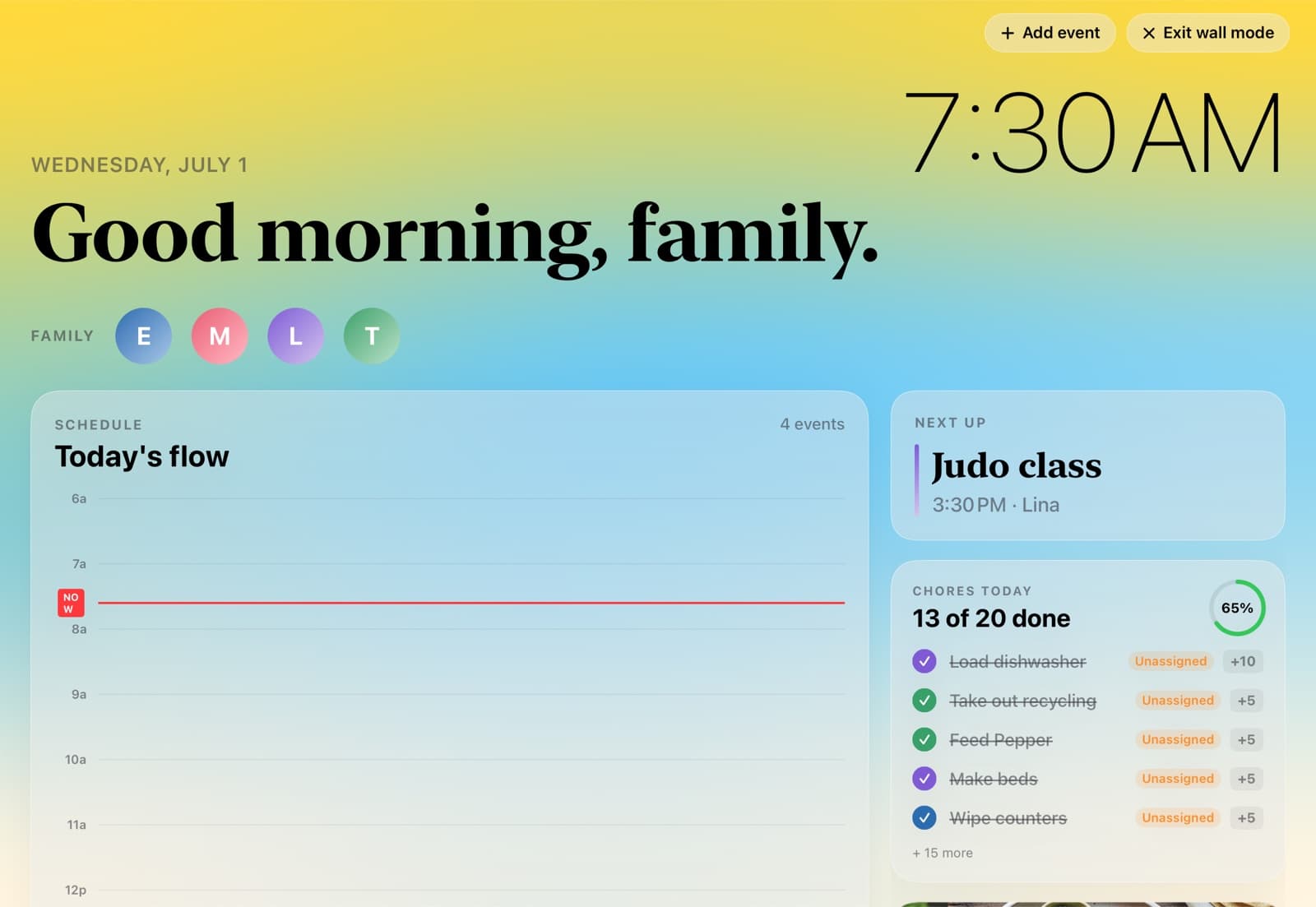
The finished setup — a real capture, not a mockup.
Step by step
How to do it.
Tips and gotchas
A few things that'll save you time.
- !Skip a 2017-or-older iPad — they're slow for always-on use and long past their last iPadOS update.
- !If an old device you're reviving has a case that no longer sits flat or a screen lifting at the edge, get the battery looked at before leaving it plugged in on a counter.
- !Turn on a Focus (Settings → Focus → Do Not Disturb, scheduled around the clock) so notification banners from other apps don't sit on top of the calendar.
- !Run iPadOS Stage Manager if you have an M-series iPad — you can pin the family calendar in one window and a small clock/weather widget in another. Looks great, no extra app needed.
- !Because everything runs on Google Calendar, anyone with an Apple Watch still sees the day's events on their wrist through the built-in Calendar app. The kitchen iPad is the shared board; the Watch is the personal mirror.
- !For privacy, don't mount the iPad facing a window or front door. Calendar events show full text by default — anyone walking past from outside can read your kids' schedules.
- !A 5W or 10W USB charger is enough — you don't need a fast charger. Slower charging runs cooler and extends battery health, which matters when the iPad is plugged in 24/7.
Common questions