Ambient mode is a full-screen display you can read from across the kitchen.
Tap Ambient in the top right of any tab, or leave the iPad alone and it comes up on its own.
Tap anywhere to get back to the app. The setting is in Settings, under Display and ambient.
Setting up a kitchen iPad
- 1
Sign in on the iPad
Use any account in the household. A parent account shows everyone.
- 2
Check ambient mode is on
Settings, then Display and ambient. It is on by default.
- 3
Pick the idle timeout
Two, five, ten or fifteen minutes. Five is the default. That is how long the iPad waits without a touch before it switches over.
- 4
Plug it in and leave HomeHQ open
While it is charging, HomeHQ keeps the screen awake for you. See the last section for the details.
Starting and stopping it
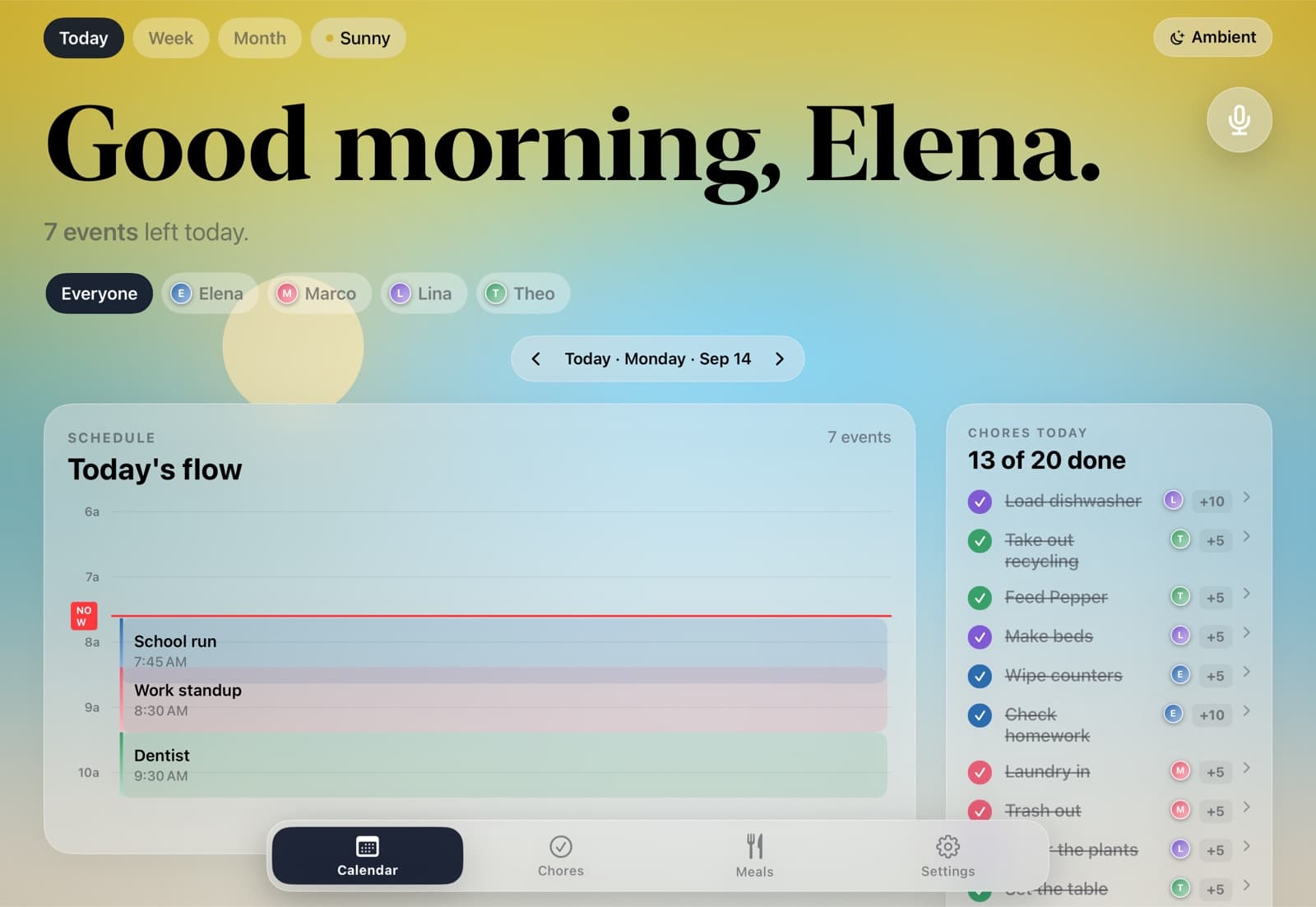
On iPad there is an Ambient button in the top right of every tab except Settings. Tap it and the display comes up straight away. The button works even if you have turned the automatic switch off.
With ambient mode on in Settings, the iPad also switches over by itself once nobody has touched it for the timeout you picked.
Tap anywhere on the screen to go back to exactly where you were.
iPhone has the same setting but no button. It is really an iPad feature.
What is on the screen
Across the top: the time, the date and the weather.
Across the bottom: everyone in the family, and how the day's chores are going, like "13/20 chores" or "All chores done".
In the middle, one panel at a time, changing every twelve seconds. The list of panels is rebuilt every minute, so something that has finished drops out on its own.
What it rotates through
- 1
The family's day
What is left on the calendar today. This one always shows, even if it just says there is nothing on.
- 2
Each person's day
A panel for each person who still has something on, soonest first, up to four people. It only appears when at least two people have plans, otherwise it would just repeat the family panel.
- 3
Chores still to do
Unfinished chores, overdue ones first and in red, with who is on each. Once everything is done this panel disappears.
- 4
What got done
Late in the evening and overnight, a list of the chores that were finished, with a tick and who did them.
- 5
Tomorrow's chores
From five in the evening, a look at tomorrow's chores and whose turn they are.
- 6
Dinner
Tonight's planned dinner and how long it takes to prep.
How it changes through the day
The headings follow the clock. In the morning it says Today. Through the day unfinished chores are Still to do, in the evening they are Before bed, and after nine they become Left for tomorrow.
After nine at night overdue chores stop showing in red. Nobody is going to do them at eleven, so the display stops nagging.
After midnight it shows tomorrow: tomorrow's events, tomorrow's chores and tomorrow's dinner. The per-person panels are skipped overnight. The day doesn't really turn over until 4am, so someone up at half past midnight still sees tonight counted as today.
Keeping the screen on
While ambient mode is showing, HomeHQ keeps the screen on, plugged in or not.
While it is counting down to ambient mode, a plugged-in iPad also stays awake, so the iPad's own Auto-Lock can't beat the timeout.
This only works while HomeHQ is open and on screen. If the iPad is unplugged, it can lock before the timeout runs out. Keep it charging, or set Auto-Lock to Never in the iPad's Display and Brightness settings.
The Home Screen widget
There is also a Family Today widget for iPhone and iPad. Long-press the home screen, tap the plus, search for HomeHQ, and add it. It shows what is next and how the chores are going without opening the app.
Still stuck? Send us a message. We reply within a day on weekdays.
Questions people ask.
Anything running iPadOS 18. Old iPads work fine for this, which is the point.
No. Sign in as any household member. Most families use a parent account so the whole family shows.
Yes. Turn off Ambient mode in Settings, under Display and ambient. The Ambient button still works when you want it.
Yes, roughly every minute.
Bring the calm home.
30 days free. Your whole household, on the iPad and iPhone you already own.